
illphated
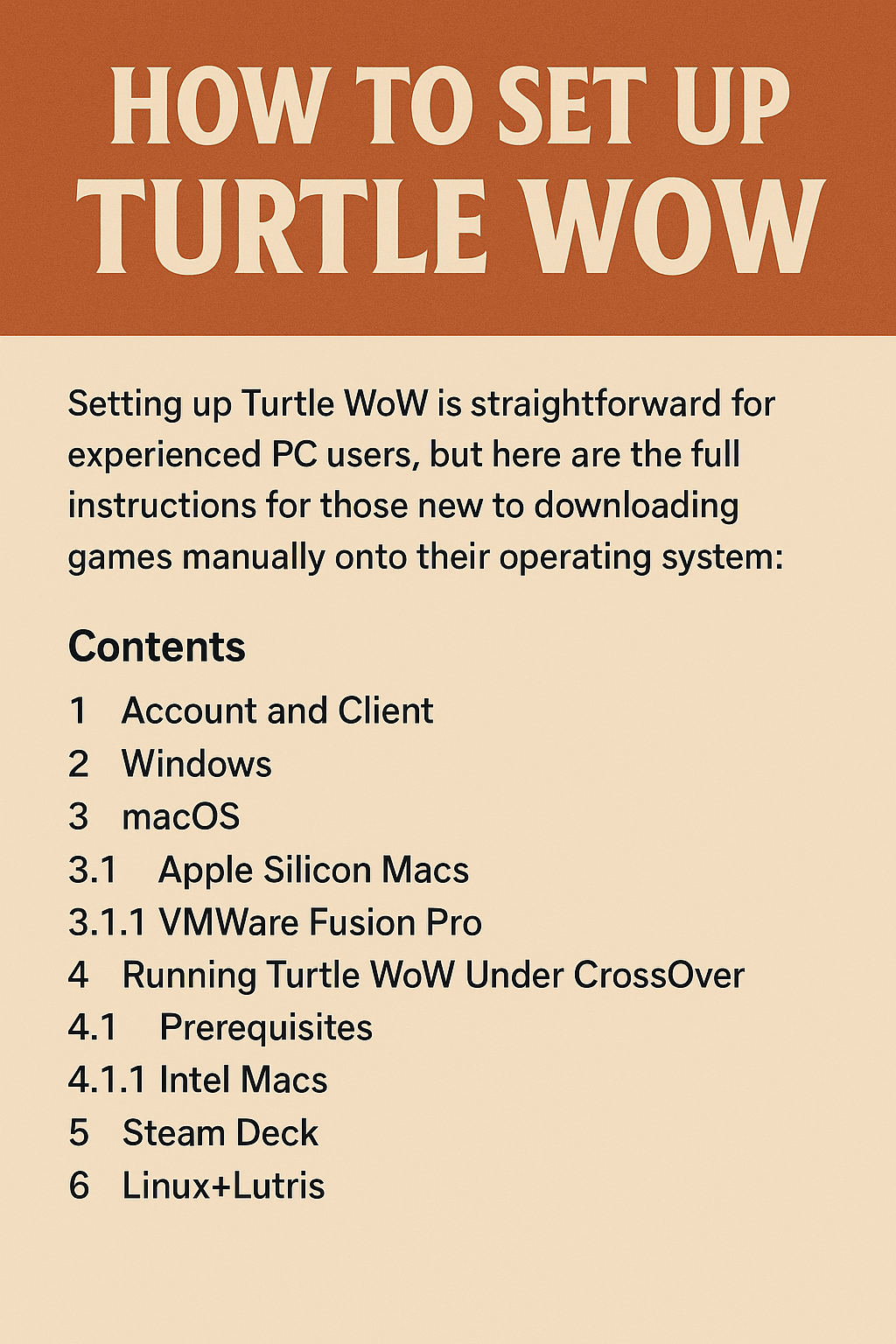
How to Run Turtle WoW on macOS with CrossOver (in 1280×800 Resolution)
Are you a Mac user longing to relive the old-school Warcraft experience on Turtle WoW, but frustrated by launcher compatibility issues or resolution glitches?
Good news: you can get Turtle WoW running smoothly on macOS using CrossOver, complete with 1280×800 resolution and full launcher support. Here’s a step-by-step guide to make it happen.
🚀 What You’ll Need
A Mac running macOS Catalina or later
CrossOver (free trial available)
Turtle WoW Launcher (TurtleWoWLauncher.exe)
A few minutes and a bit of patience
🛠️ Step 1: Install CrossOver
Head over to CodeWeavers and download CrossOver.
Install it and either start your free trial or activate your license.
🐢 Step 2: Set Up the Turtle WoW Bottle
Launch CrossOver and click “Install a Windows Application.”
Search and install “DirectX for Modern Games” into a new Windows 10 64-bit bottle.
After installation, go back to the bottle and click “Install Software in Bottle.”
This time, select “Unlisted application” and install the TurtleWoWLauncher.exe (download it from turtle-wow.org/download).
🔧 Step 3: Configure the Game Resolution
Before launching the game, you’ll want to lock the resolution to 1280×800:
In CrossOver, right-click the Turtle WoW bottle → Open C: Drive.
Navigate to:
swift
Copy
Edit
/users/crossoveruser/Application Data/TurtleWoW/WTF/
Open Config.wtf in a text editor and make sure these lines are present:
wtf
Copy
Edit
SET gxWindow “1”
SET gxResolution “1280×800”
SET windowResizeLock “1”
Save and close the file.
This will ensure the game runs in windowed mode at the proper resolution without stretching or dragging issues.
🖥️ Step 4: Launch the Game
Now it’s showtime.
In CrossOver, click Run next to TurtleWoWLauncher.exe.
When the launcher loads, click Play.
The game should now run in smooth 1280×800 resolution, optimized for your MacBook screen.
🧙 Bonus Tips (Optional)
If UI scaling looks off or blurry, go to your CrossOver bottle settings and enable “High DPI Support.”
You can also add this environment variable:
__GL_FSAA_MODE = 0 to reduce anti-aliasing artifacts.
🎉 You’re In!
Turtle WoW is now playable on your Mac with CrossOver—and it looks just right in 1280×800. Whether you’re adventuring as a turtle-shelled warrior or chilling in Stormwind, your MacBook just became your Azeroth gateway.
💡 Need More Tips?
Want help automating the launcher or customizing your UI even further? Drop a comment or check out more guides at illphated.com—where nostalgia and tech collide.





b38qwl
brfeee
rphfd4
7x1qa2
cy8sfy